
Comment Auto Reply in ReplyRush
The Comment Auto Reply feature automatically replies to comments on your Instagram posts and reels — helping you engage your audience instantly while reducing the risk of spam detection.
You can customize multiple reply messages, rotate them randomly, and choose whether to apply them to new or already linked posts.
Purpose of Comment Auto Reply
- Boost engagement – Show followers you’re responsive by replying quickly to their comments.
- Encourage further interaction – Replies can prompt users to check DMs, follow your account, or join a campaign.
- Avoid spam detection – Rotating multiple messages keeps your replies looking natural.
Benefits
- Works for posts, reels, and stories.
- Automatically rotates up to 5 different reply messages so Instagram won’t mark them as spam.
- Can be auto-enabled for new posts or applied to already linked posts in bulk.
- Saves time by replying without manual effort.
How to Set Up Comment Auto Reply
- Log in to your ReplyRush account: https://app.replyrush.com
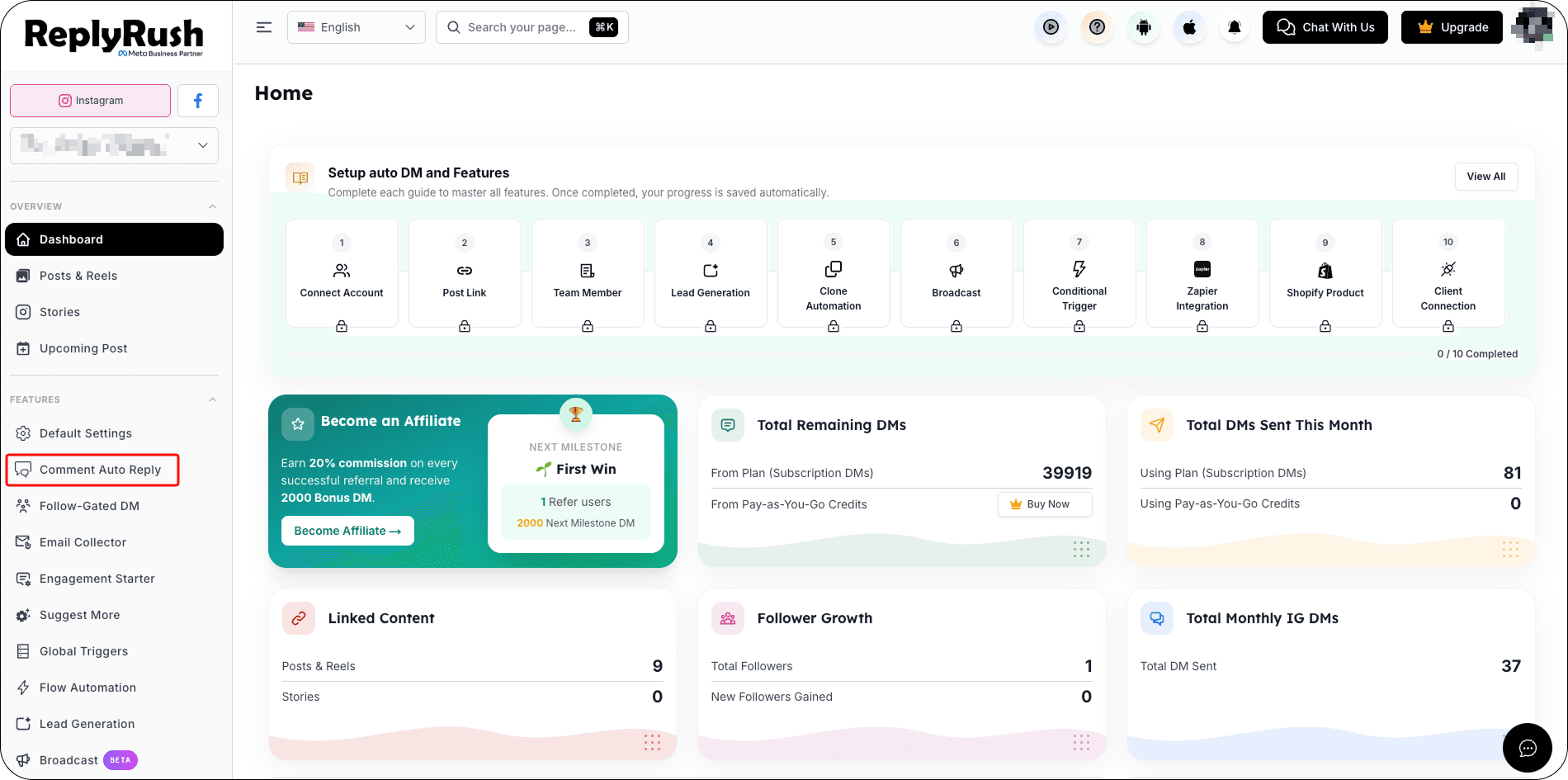
- From the sidebar, click Comment Auto Reply.
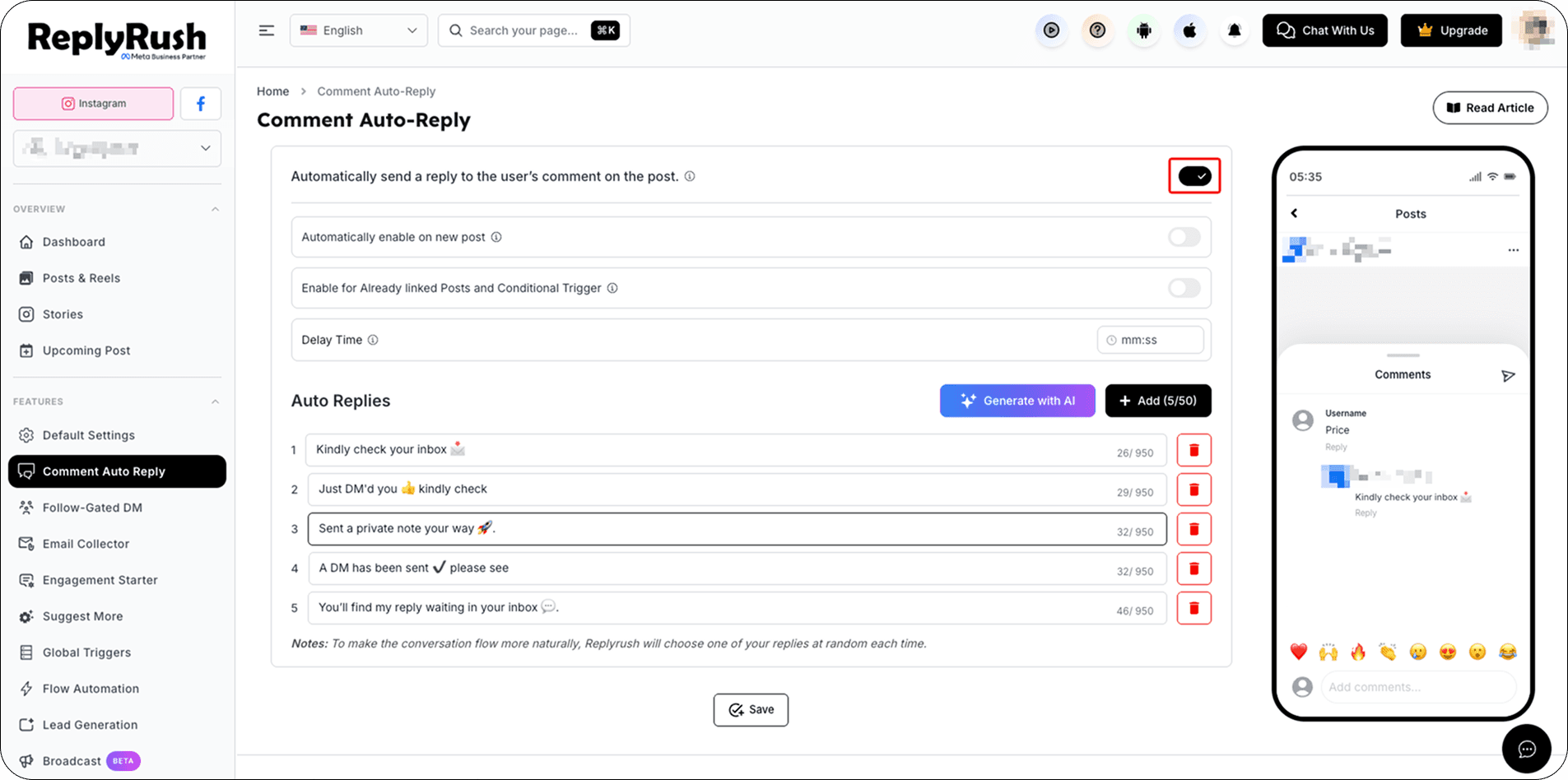
- Toggle Enable Comment Auto Reply.
- Configure your settings:
Automatically enable on new post – When turned on, any new post you link for automation will have Comment Auto Reply enabled by default.
Enable for Already Linked Posts and Conditional Trigger – When turned on, Comment Auto Reply will be activated for all posts and Conditional Trigger you’ve already linked.
Delay Time – Add a delay time to send comment replies once the DM is delivered.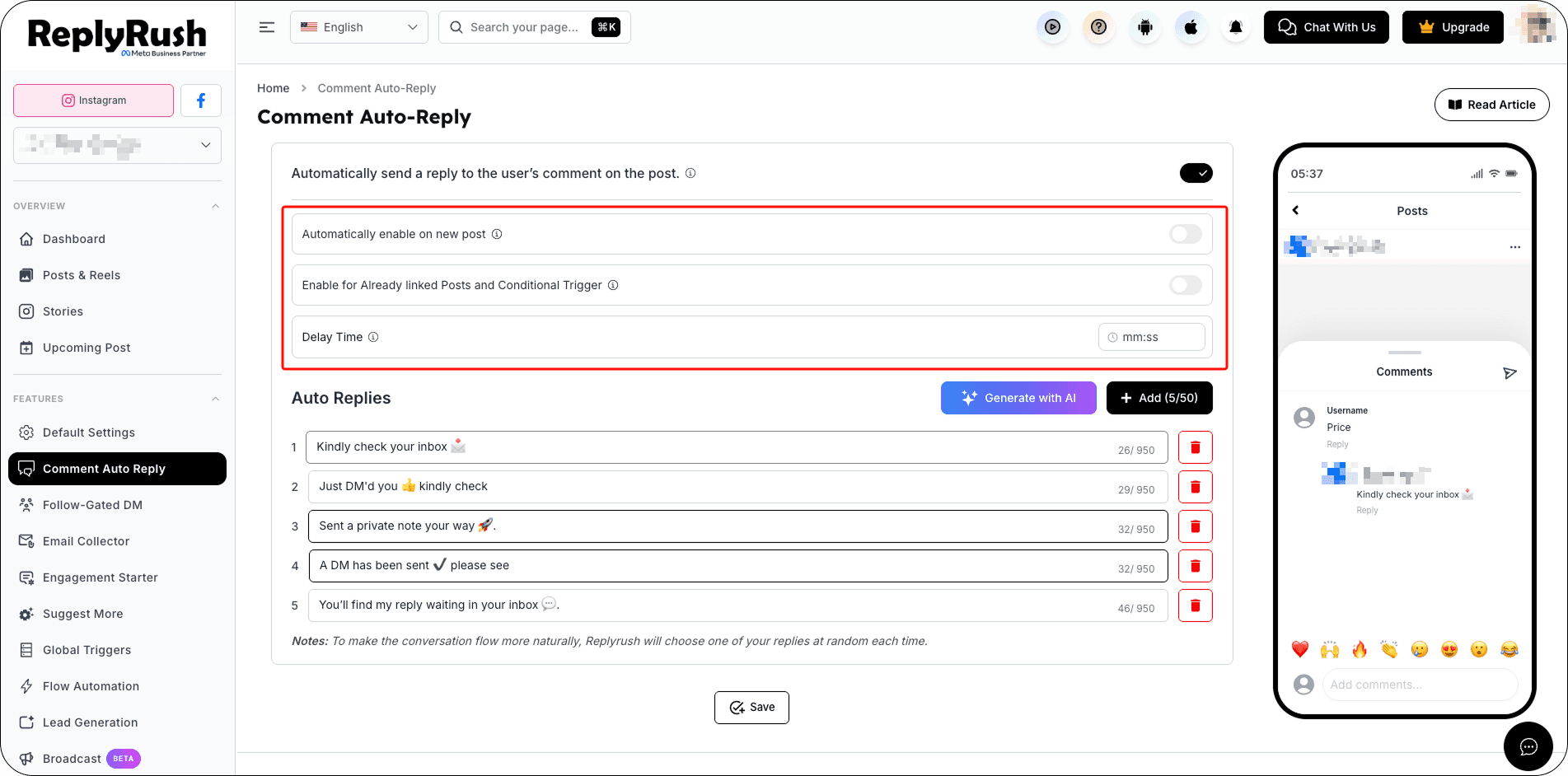
5. Add up to 5 different reply messages in the message fields, or use Generate with AI to create auto-reply messages.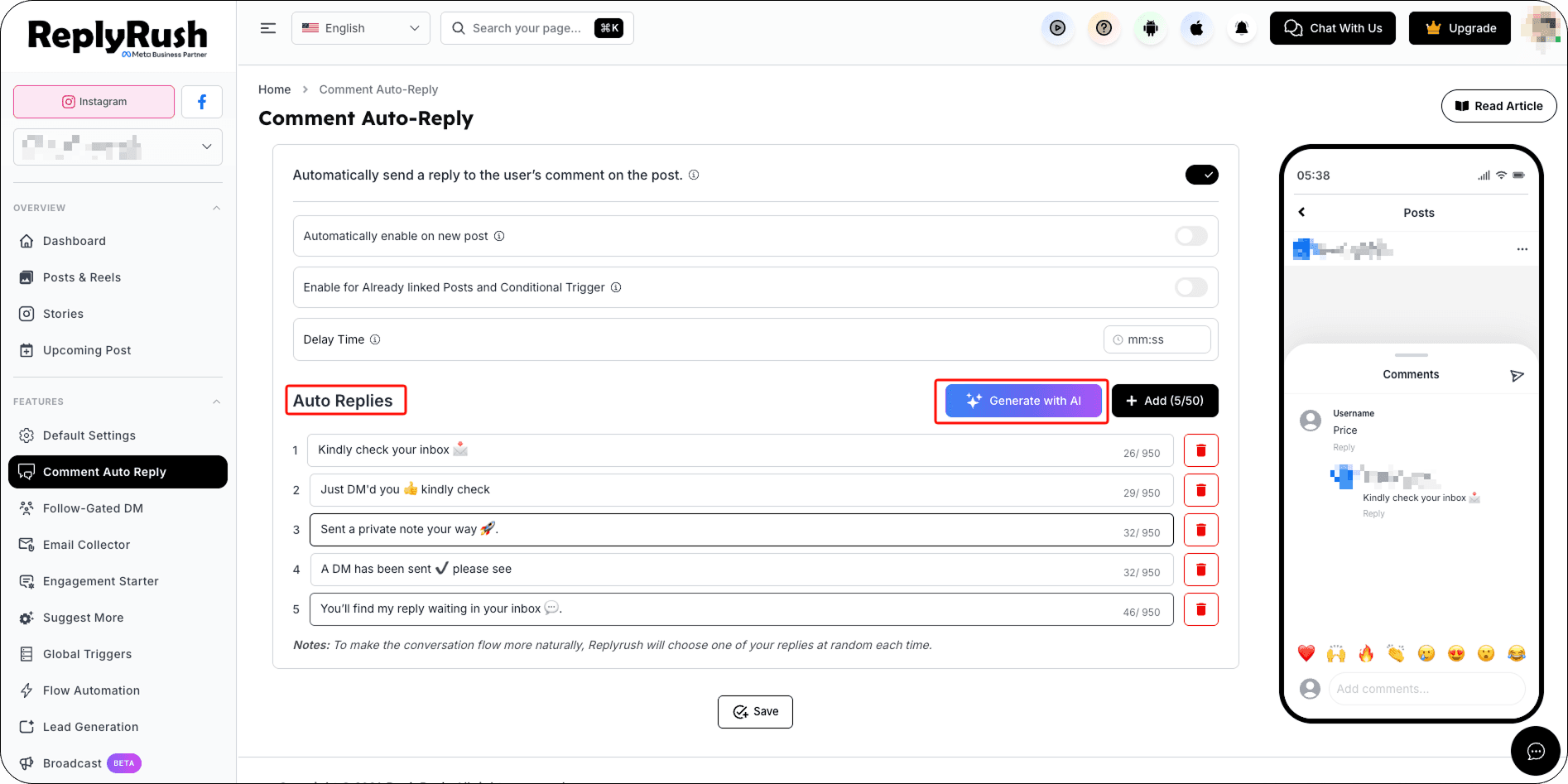
6. Click Save to apply your settings.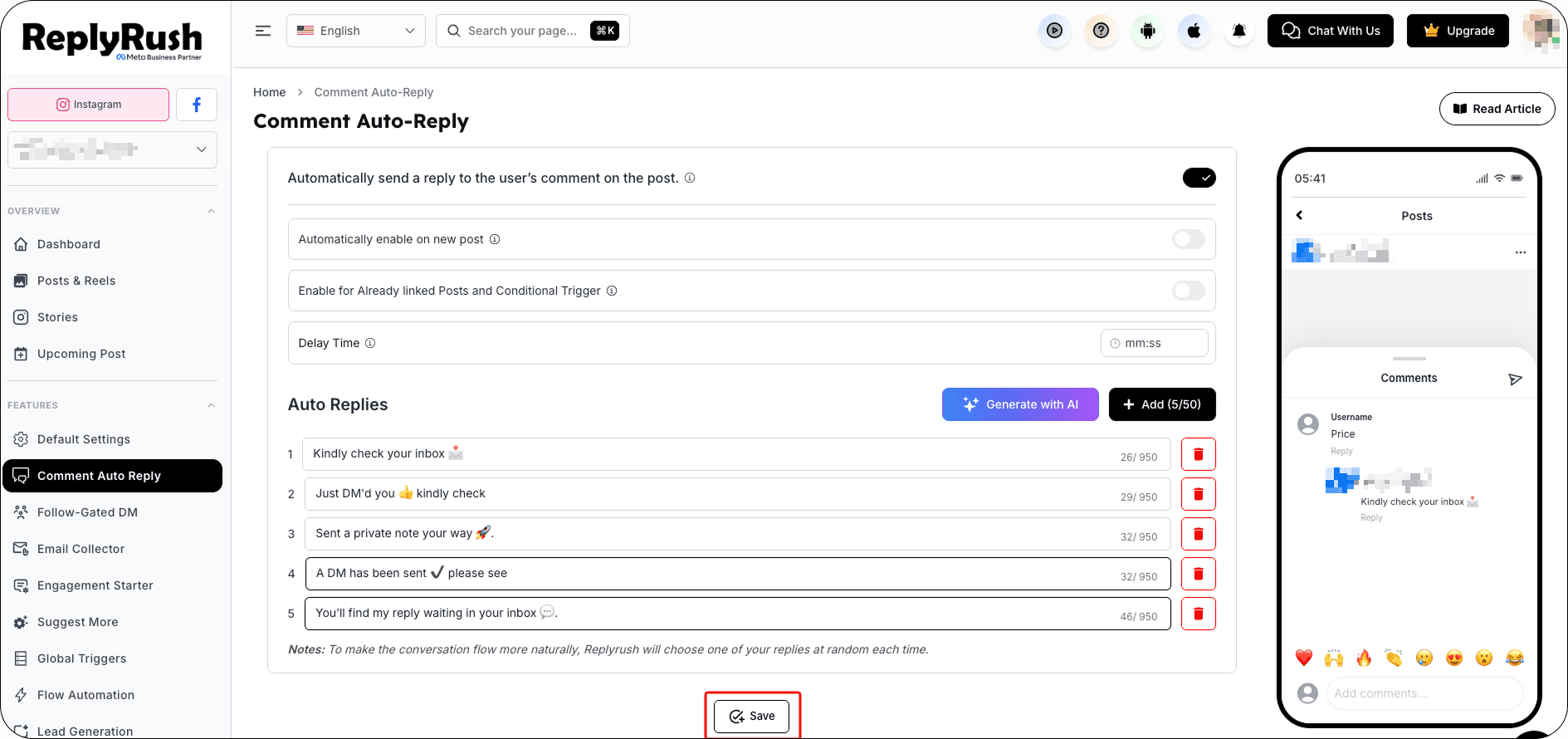
Manage Comment Auto-Reply
When Comment Auto-Reply are enabled, you can manage their status directly from the sidebar toggle.
When you turn the toggle OFF, ReplyRush displays an Active Automations dialog showing where Comment Auto-Reply are currently being used.
Review these active automations before choosing how you want to proceed.
Temporarily Pause Comment Auto-Reply
To pause the feature:
- Turn the Comment Auto-Reply toggle OFF.
- Review the Active Automations.
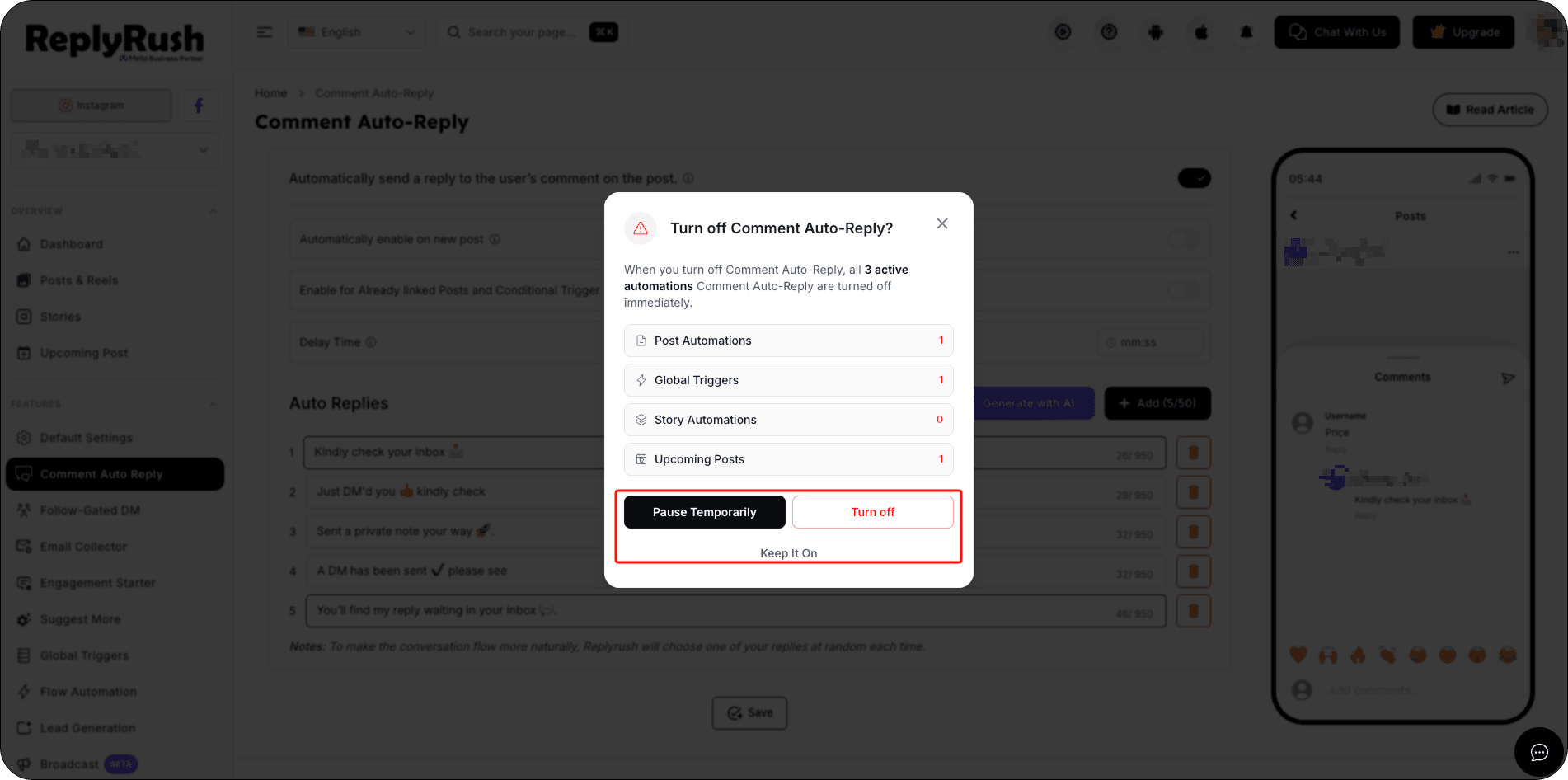
- Choose one of the three available options:
Keep It On — Keeps Comment Auto Reply enabled, allowing all automations to continue working normally.
Pause Temporarily — Temporarily pauses Comment Auto Reply for the selected duration while preserving your existing automation settings.
Turn Off — Disables Comment Auto Reply until you manually enable it again. Your existing automation settings are preserved and not deleted.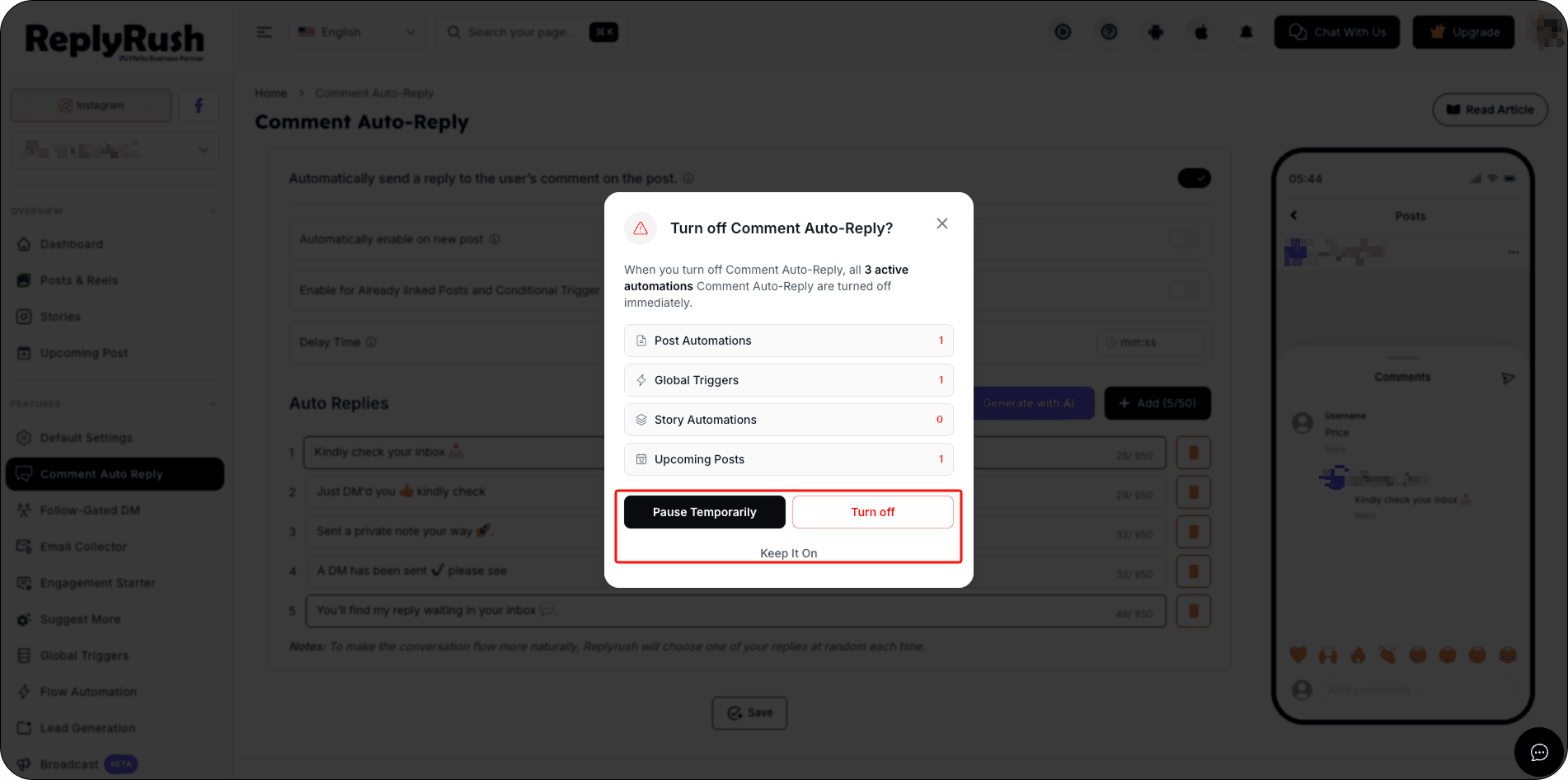
4. If you select Pause Temporarily, choose the desired pause duration.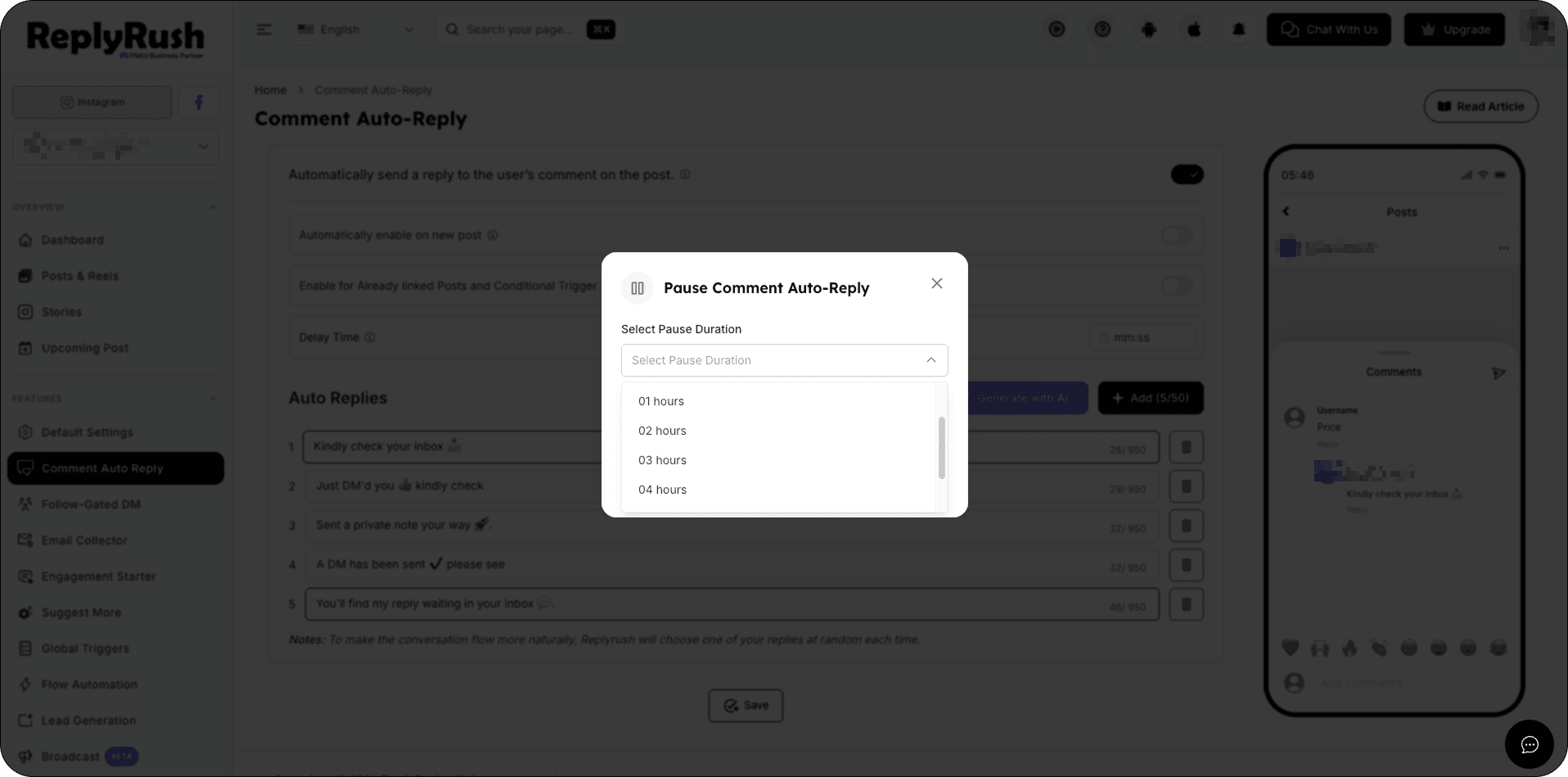
5. Click Pause to confirm.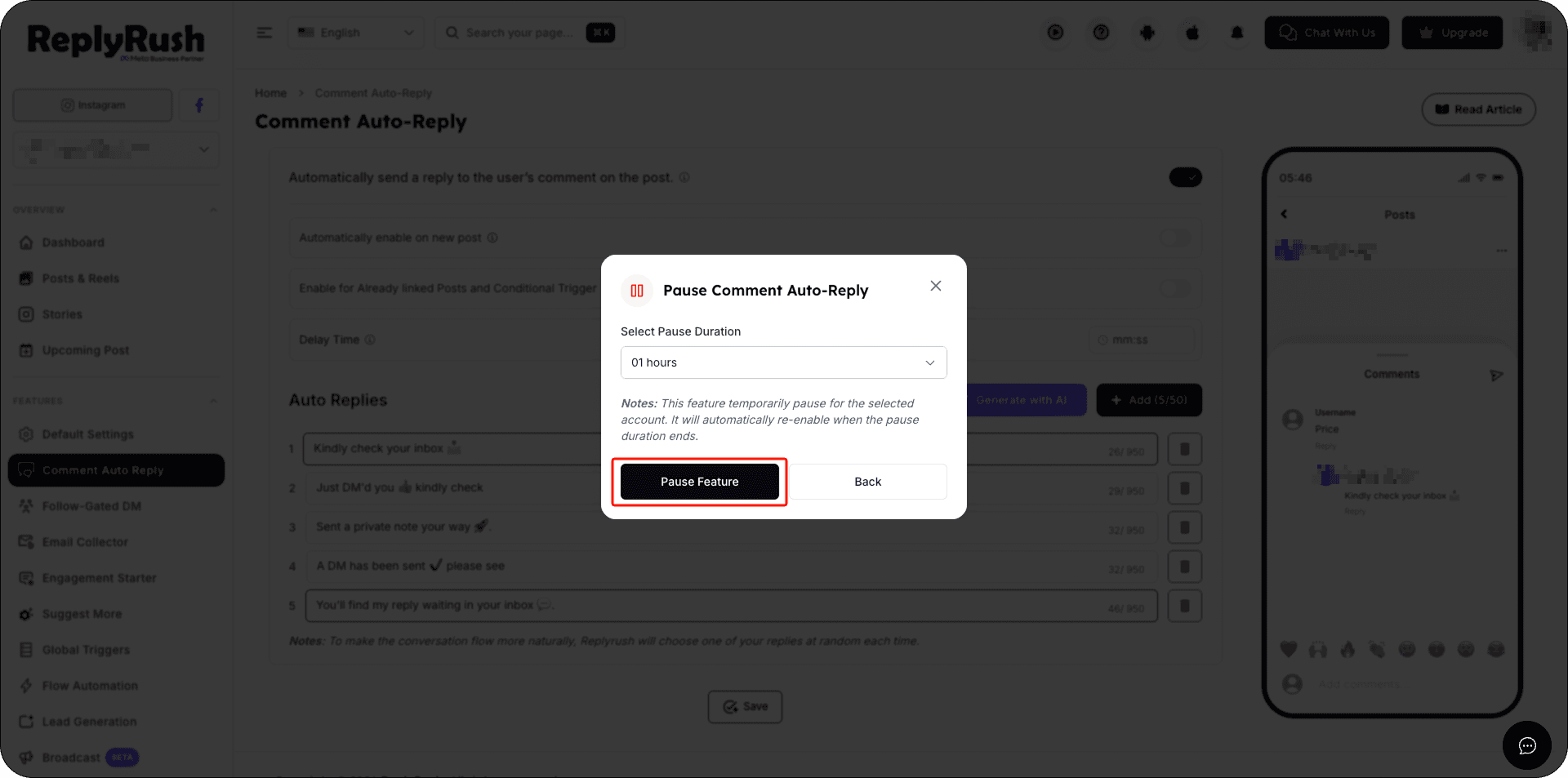
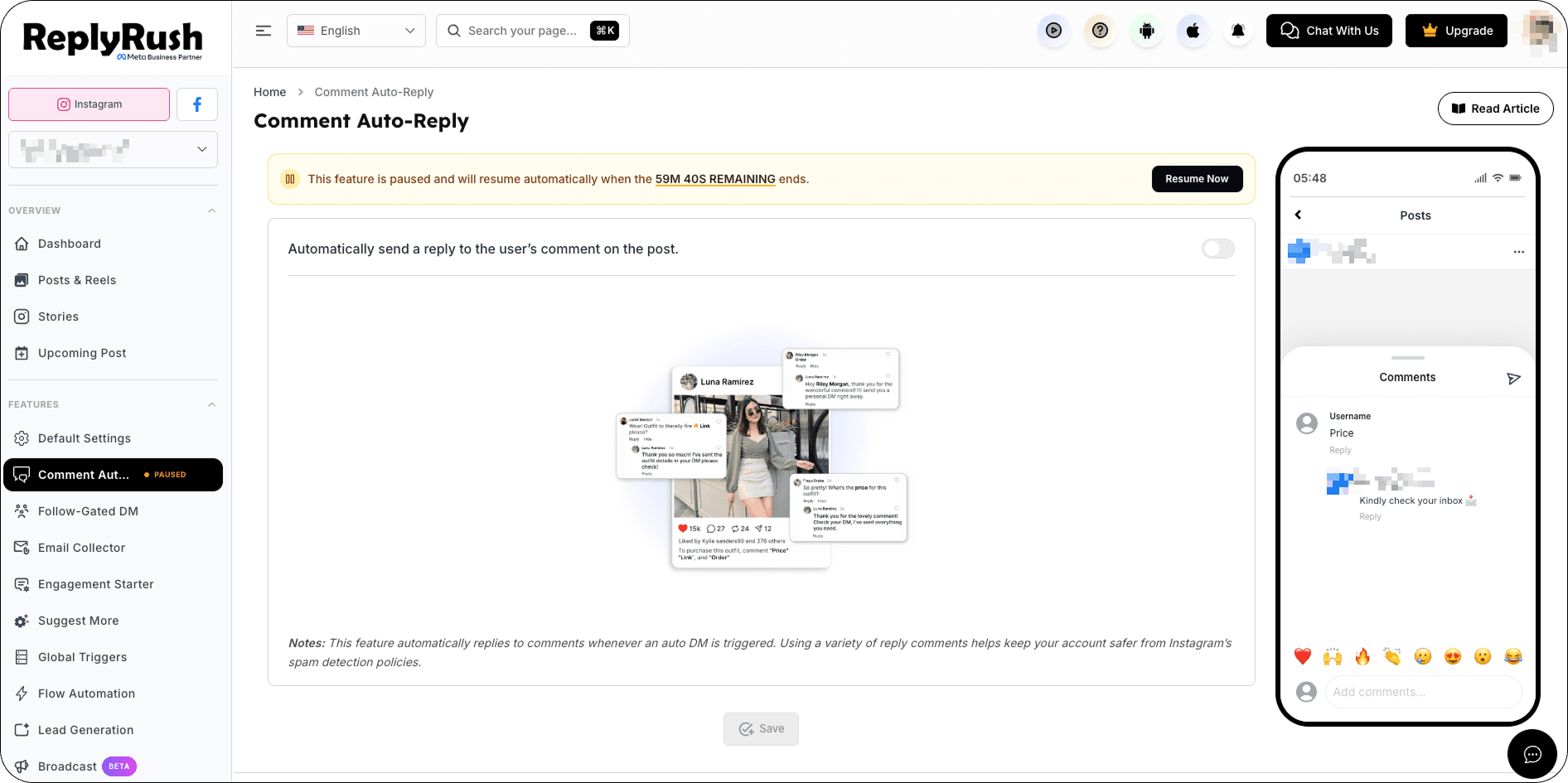
After the selected pause duration ends, ReplyRush automatically enables Comment Auto-Reply again.
You don’t need to manually turn it back on.
Example:
If you select a 1-hour pause, Comment Auto-Reply will automatically become active again after 1 hour.
If you select a 1-hour pause, you can click Resume Now at any time before the pause ends to immediately reactivate Comment Auto-Reply. Otherwise, Comment Auto-Reply will automatically become active again when the 1-hour pause is completed.
Enabling Comment Auto Reply for a Specific Post
If you want to activate Comment Auto Reply for a specific post instead of globally:
- Go to Posts/Reels in the sidebar.
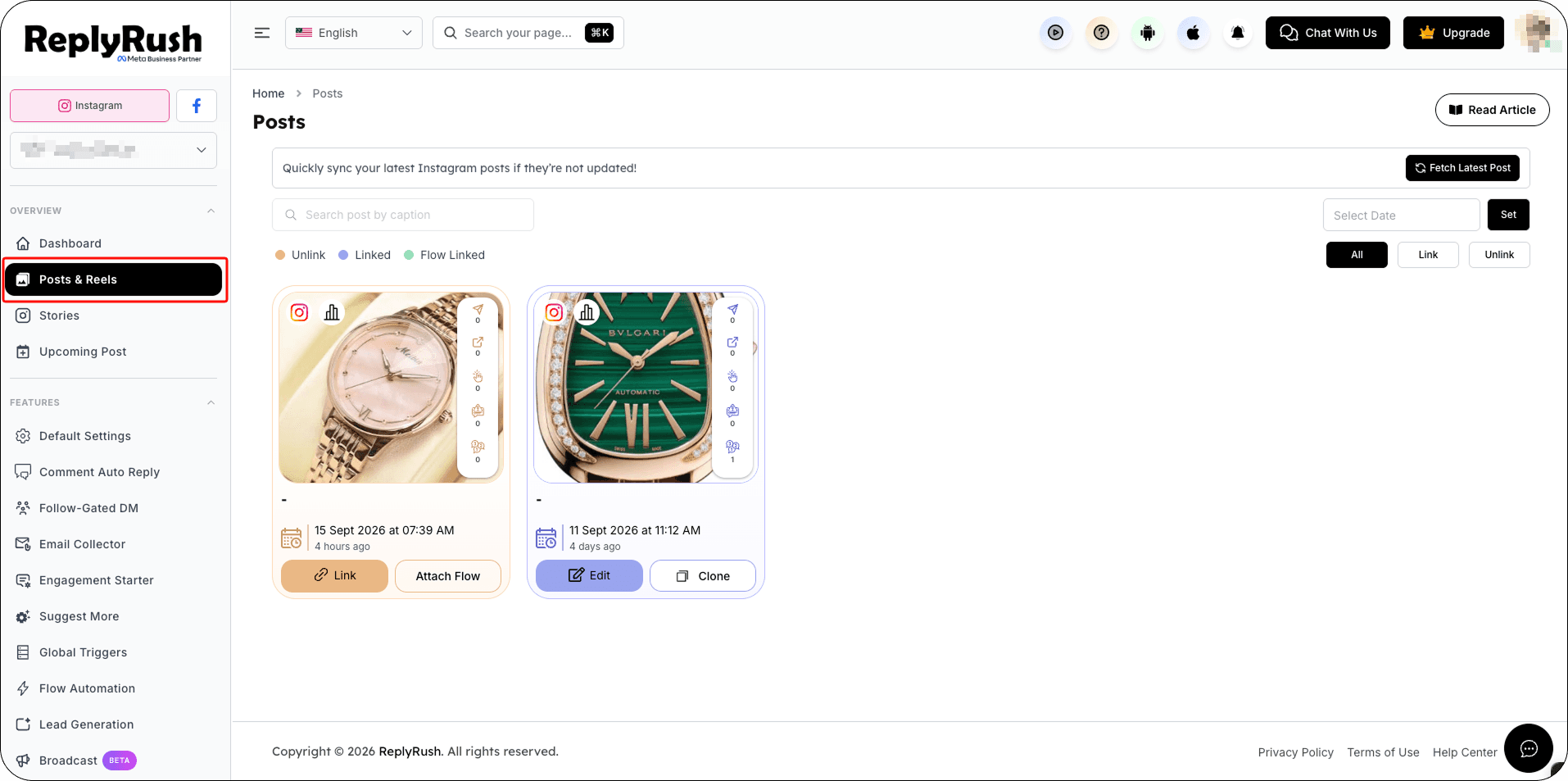
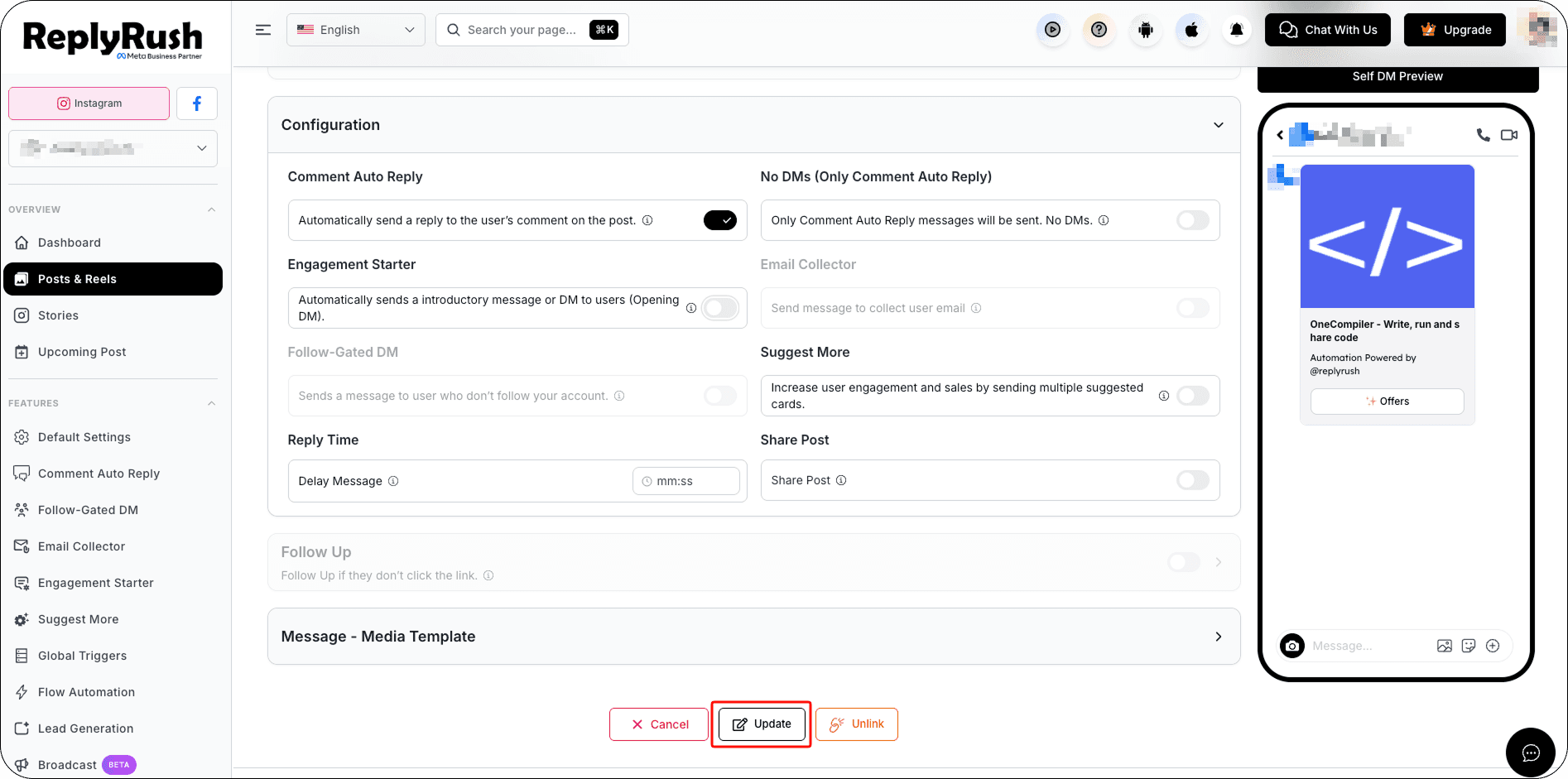
- In the Options section, toggle Comment Auto Reply to ON.
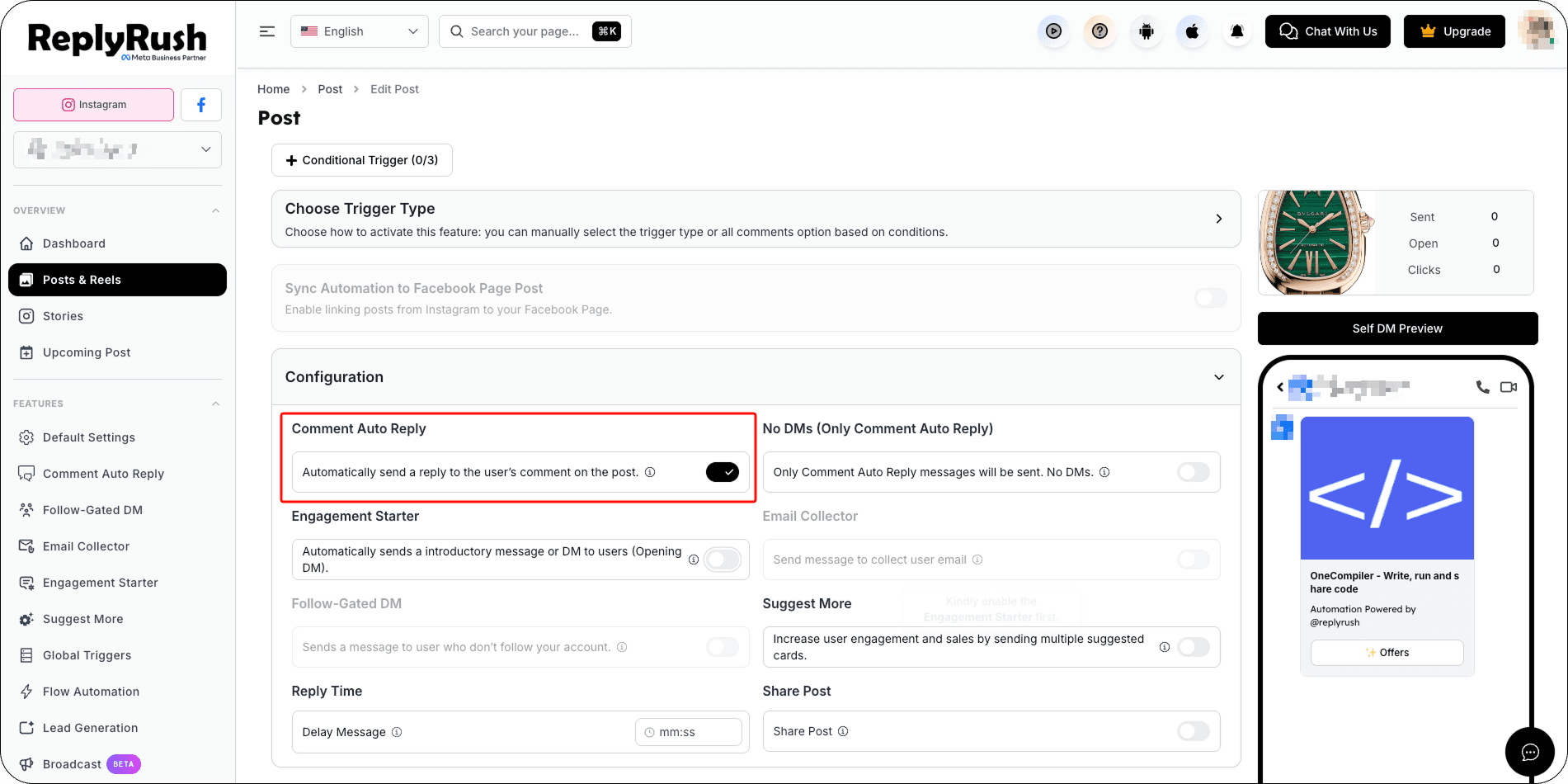
- Save your changes.
Best Practices
- Use friendly, natural-sounding replies to keep engagement authentic.
- Vary your reply messages to make your interactions look genuine and not automated.
- Combine with Auto DM triggers to drive followers from public comments into private DMs for deeper interaction.
FAQs
Q: Can I use emojis in Comment Auto Reply messages?
A: Yes, emojis are supported and help make your replies more engaging.
Q: Will Comment Auto Reply work on older posts?
A: Yes, if you enable Enable for Already Linked Posts, it will apply to all previously linked posts.
Q: Is there a limit to how many comments can be replied to per post?
A: Instagram’s limits apply, but using rotation and natural messaging helps avoid restrictions.
Q: Can I enable Comment Auto Reply before the pause ends?
Yes. You can select Resume Now to manually re-enable Comment Auto Reply before the selected pause duration is complete.