
How to Set Up Trigger Types in ReplyRush
Once you link a post, reel, or story in ReplyRush, you can choose a trigger type to decide how and when automated Direct Messages (DMs) are sent to users who interact with your content.
This step-by-step guide shows you how to set up All Comments, Specific Keywords, AI Trigger, and Share to DM.
Step 1: Link Your Post, Reel, or Story
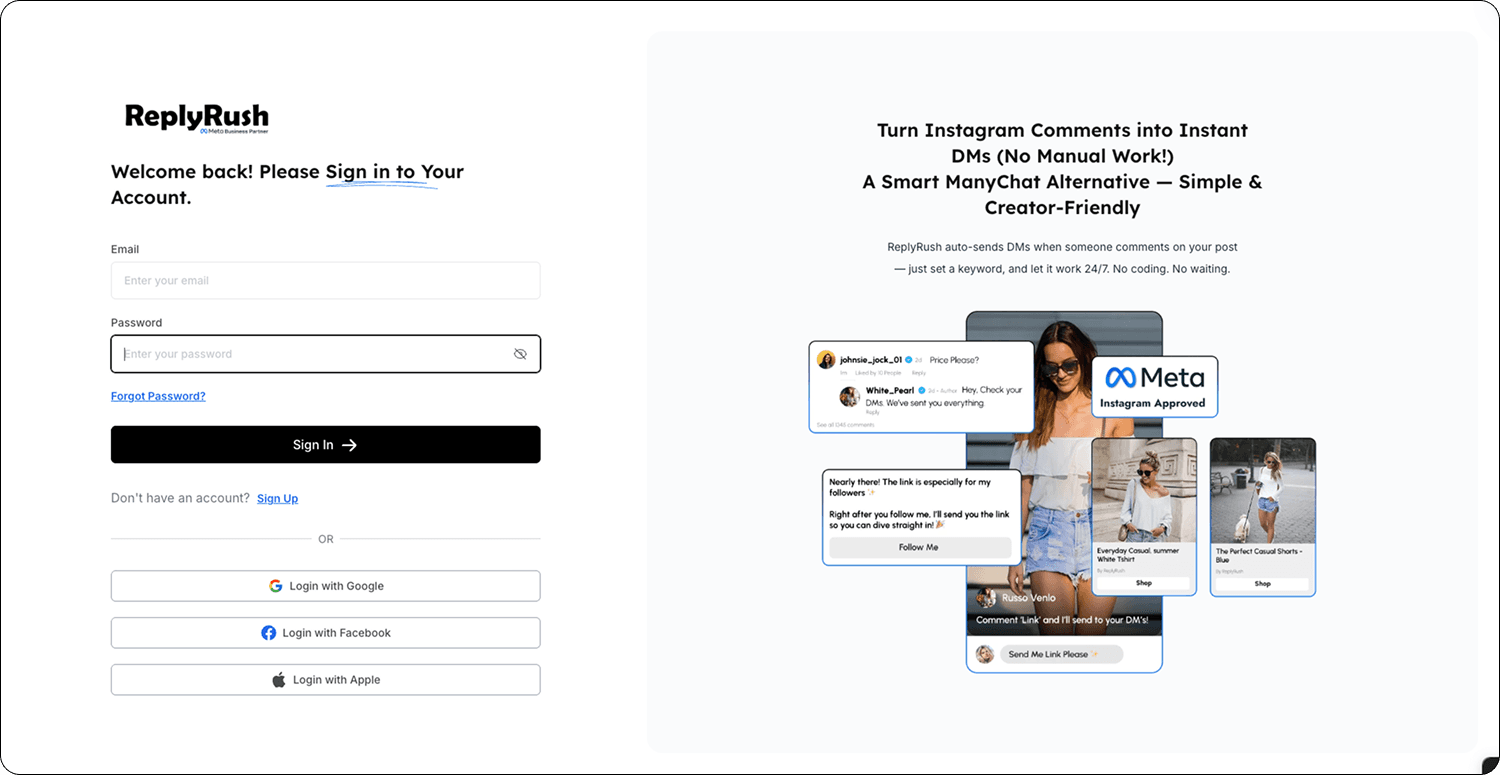
- Log in to your ReplyRush account: https://app.replyrush.com
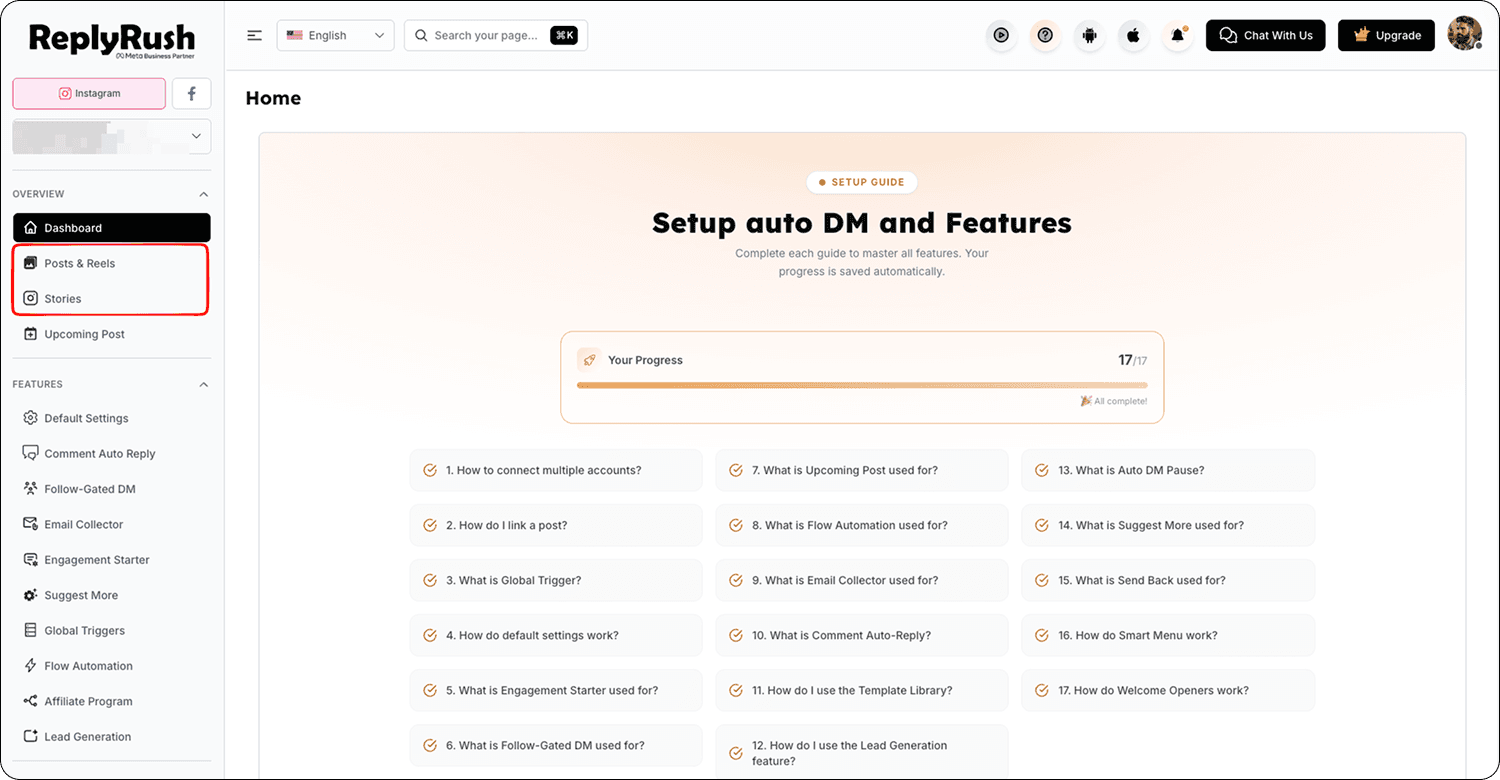
- From the sidebar, select:
- Posts/Reels for post and reel automation
- Stories for story automation
3.Locate the content you want to automate.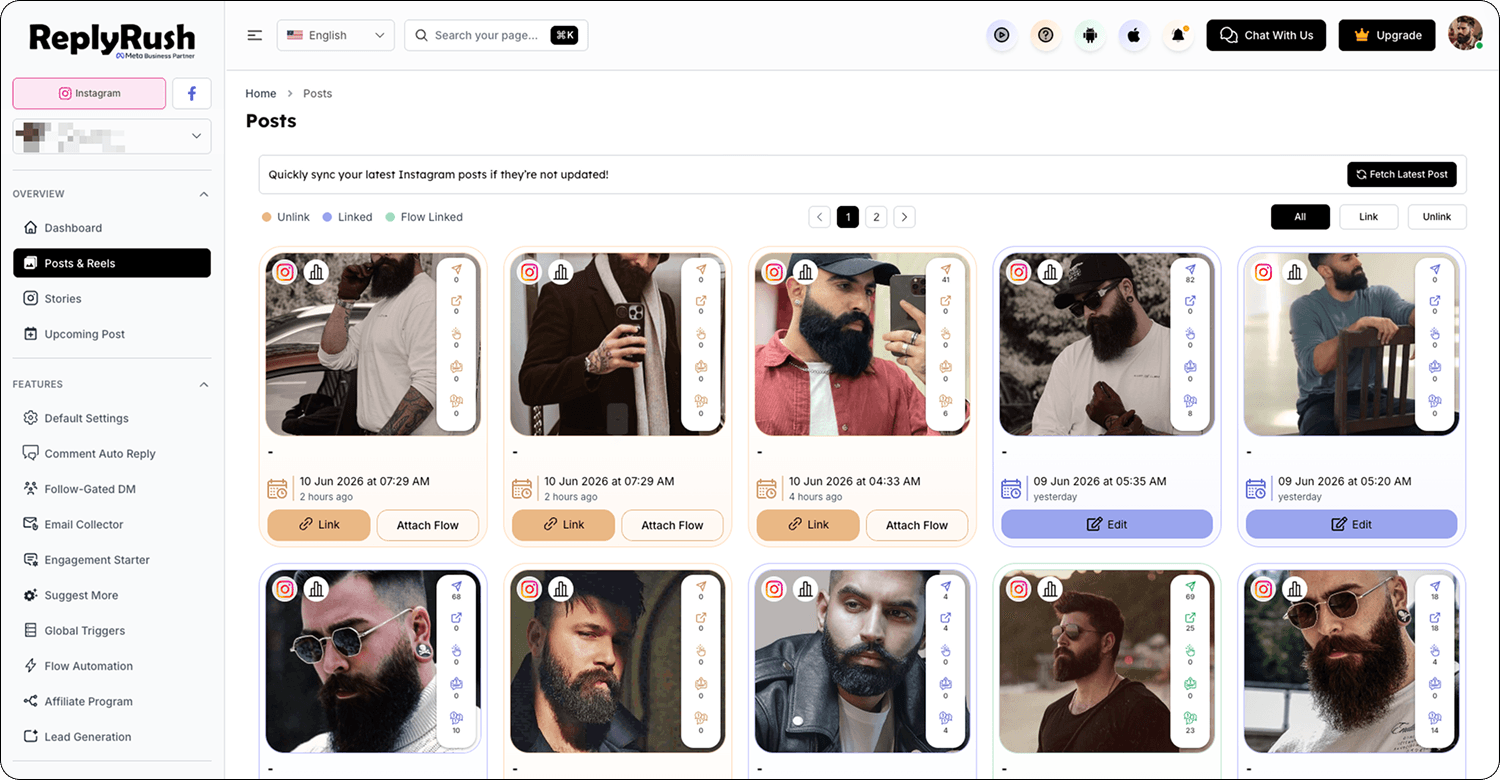
4.Click the Link button next to it to open the automation setup screen.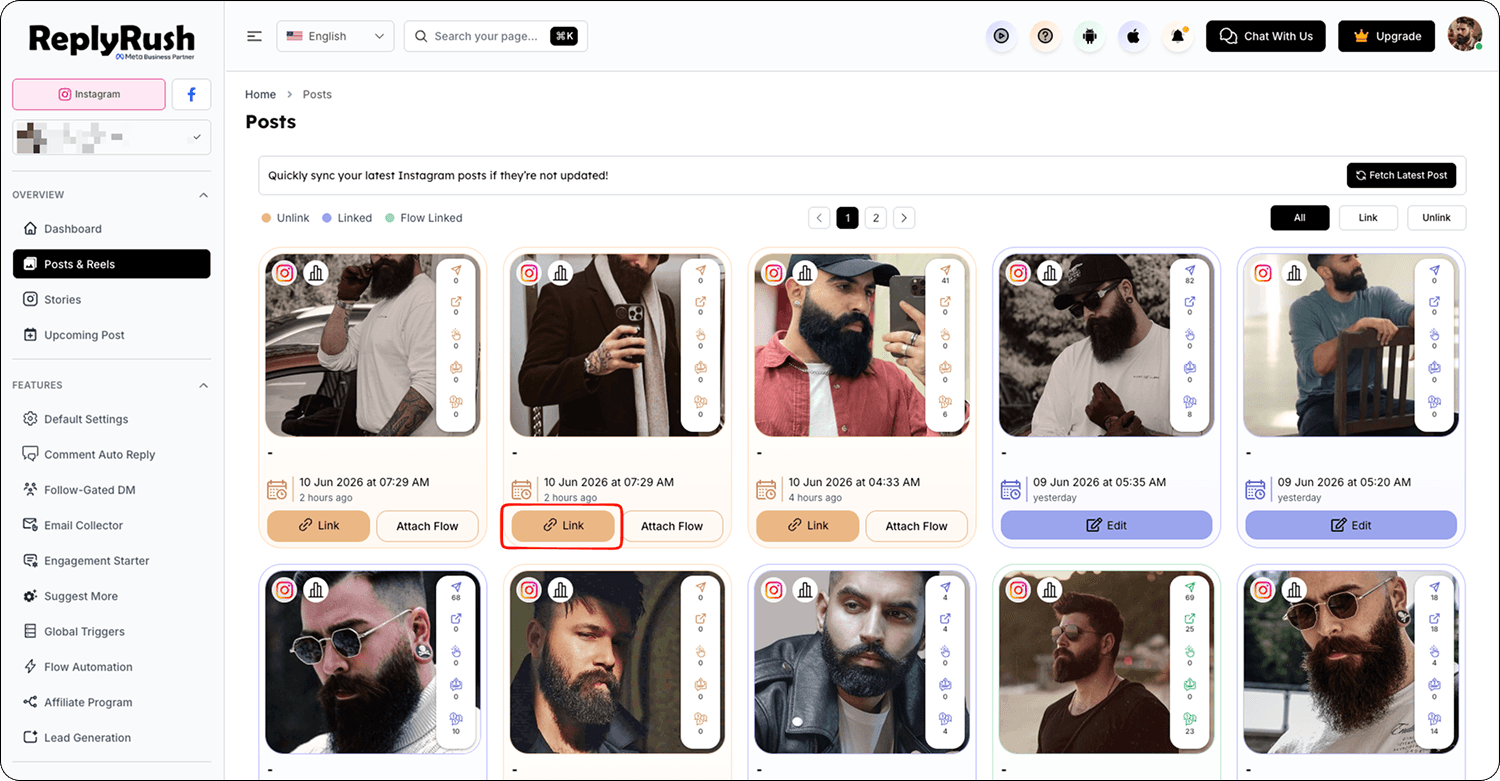
Step 2: Choose Your Trigger Type
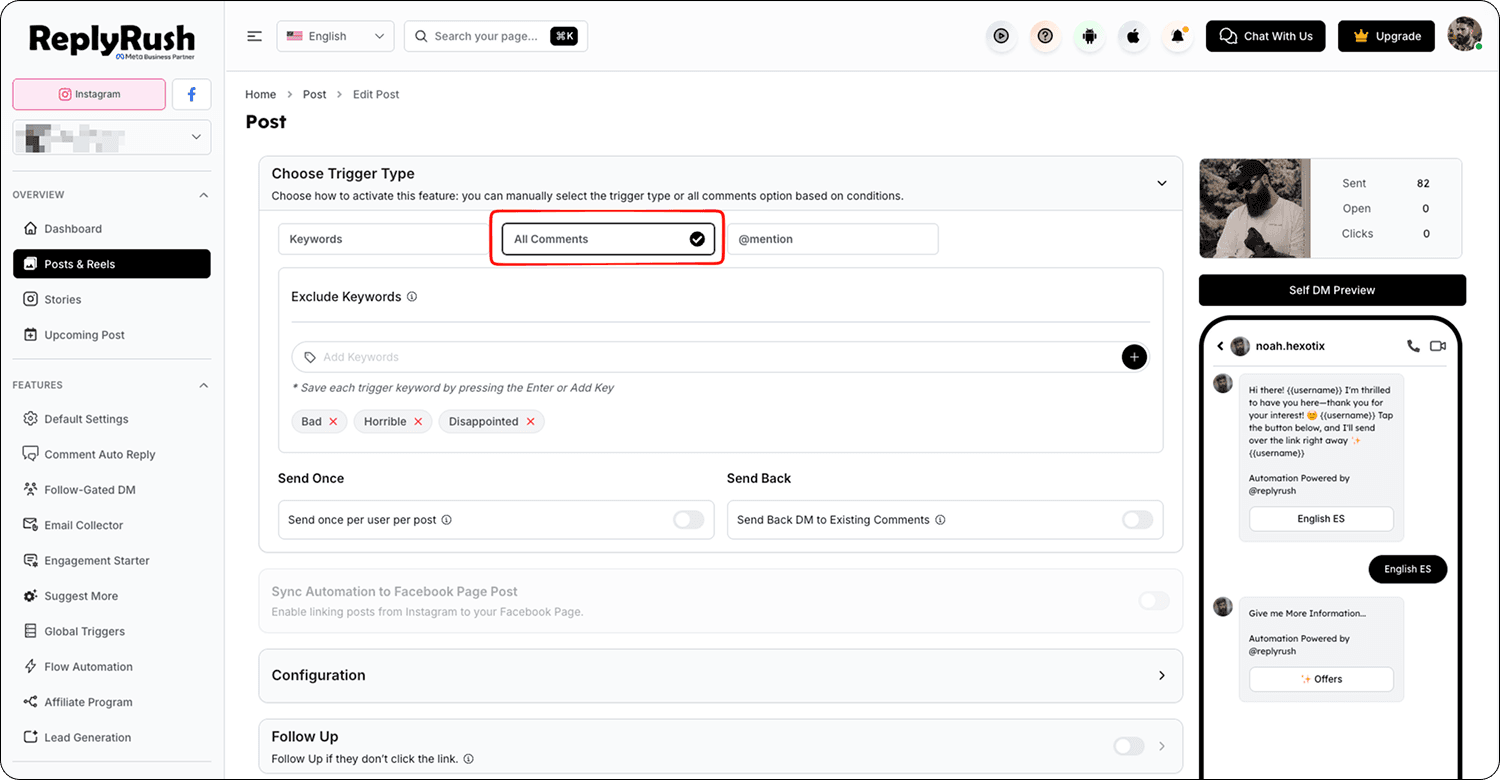
1. All Comments
- Select All Comments from the trigger options.
- This will send your DM to every user who comments on your linked content.
- Best for maximum engagement and when you want everyone to get the same message.
2. Specific Keywords
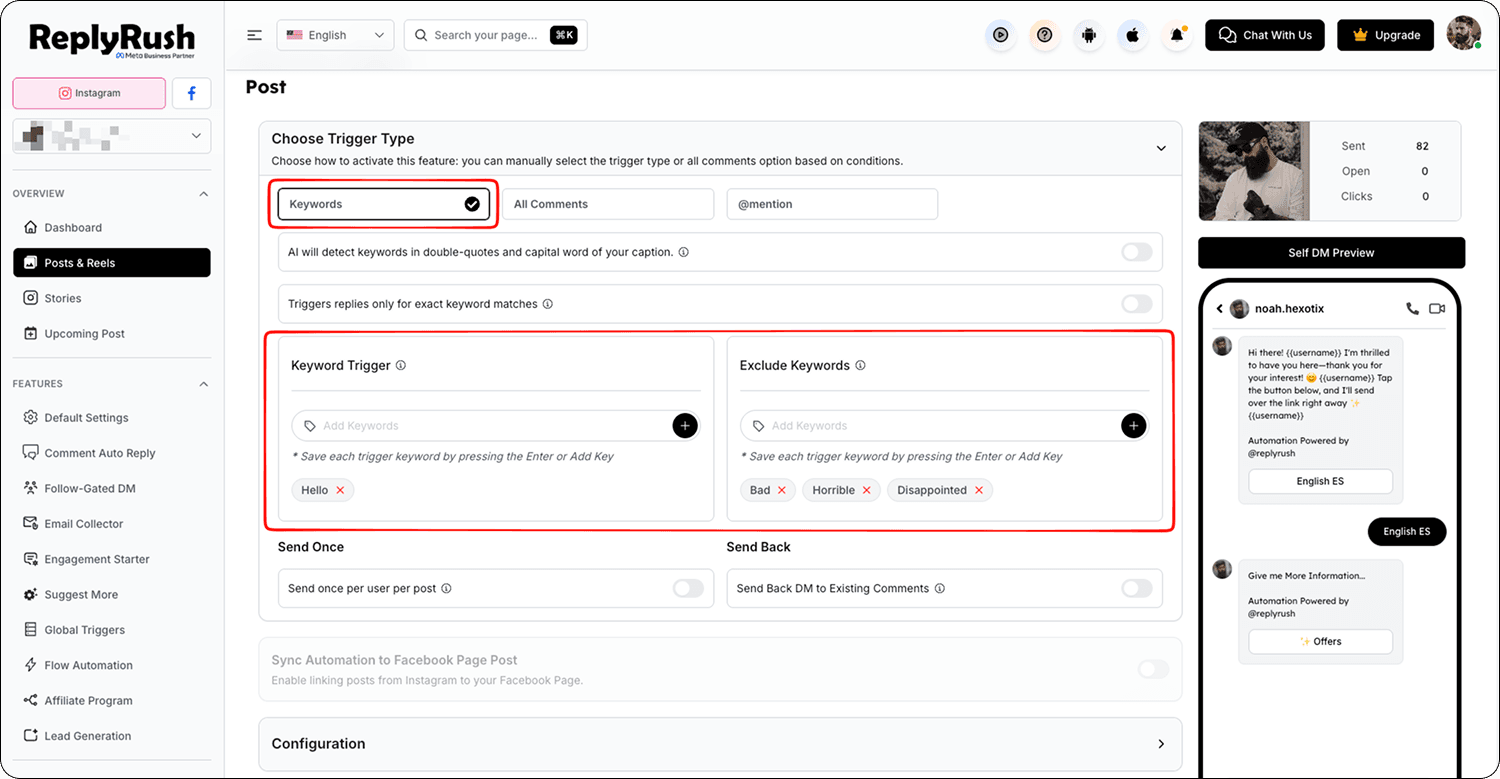
- Select Specific Keywords from the trigger options.
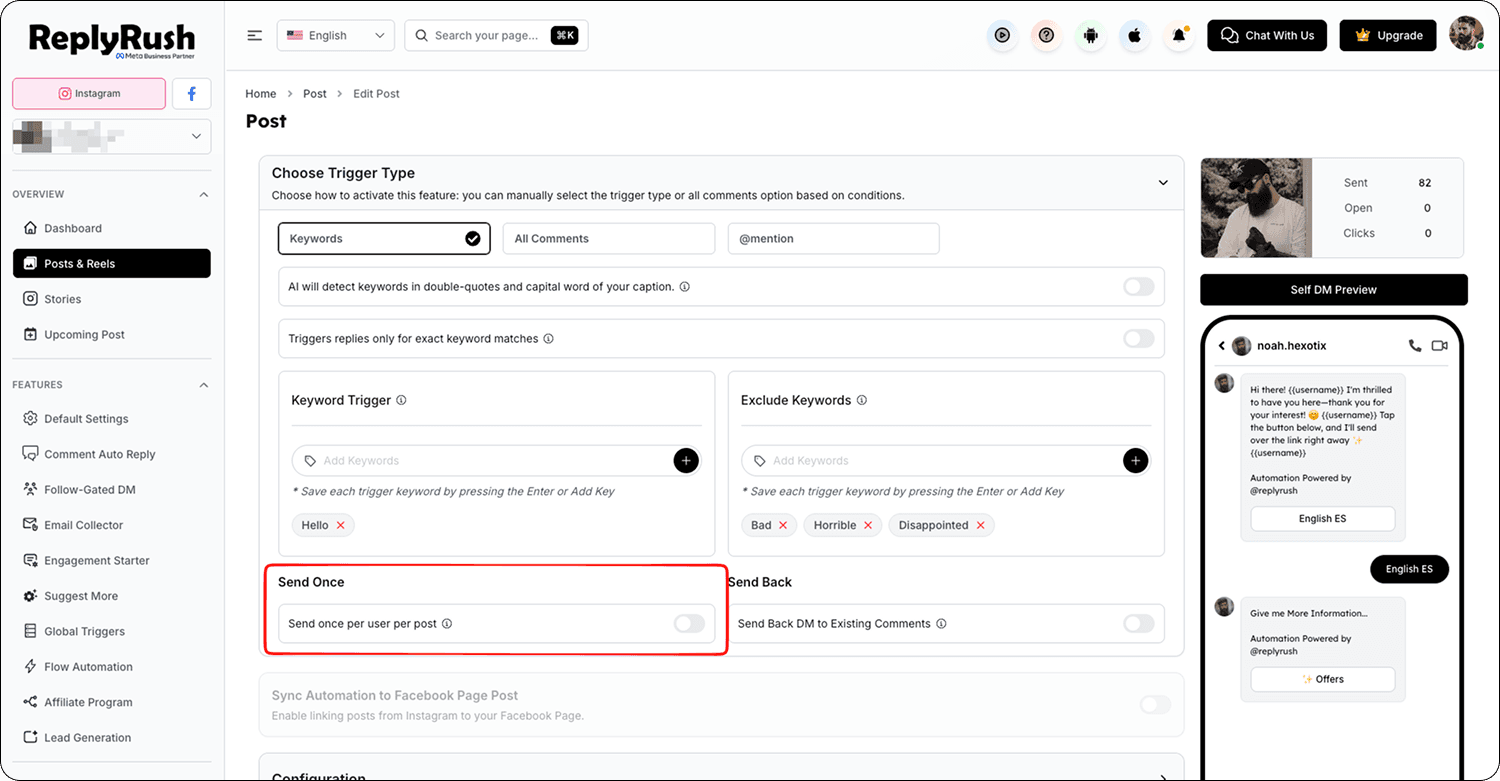
- In the keyword field, enter one or more keywords you want to trigger the DM. Separate multiple keywords with commas.
- Only comments containing at least one of these keywords will receive your DM.
- Example: “YES, INFO, DETAILS” — any comment with one of these will trigger the automation.
3. AI Trigger 🆕
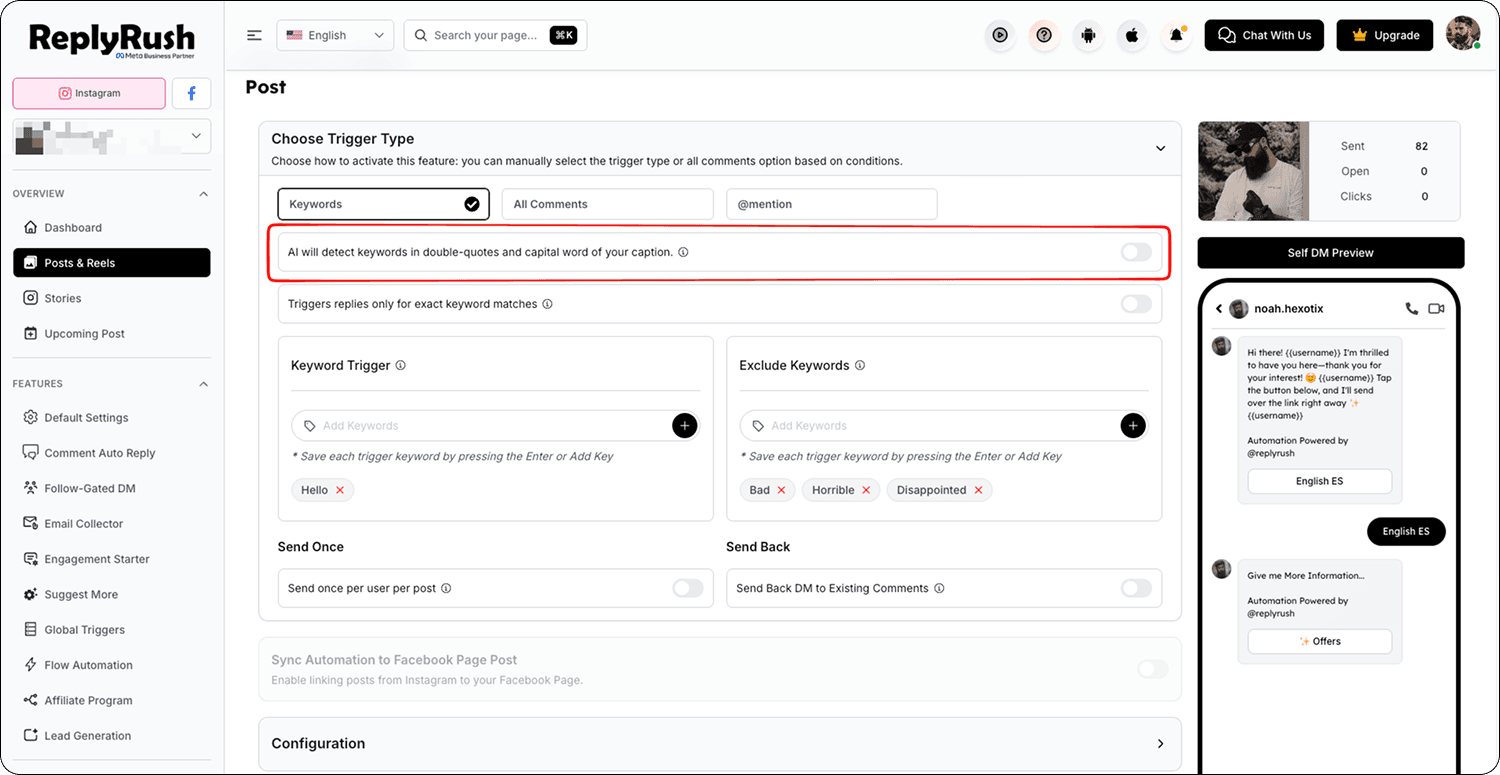
- Select AI Trigger from the trigger options.
- ReplyRush will automatically detect keywords from your post/reel description and set them for you.
- If you edit your Instagram description later, the AI Trigger updates automatically — no need to log into ReplyRush to adjust.
- Great for saving time and keeping automation running without manual updates.
4. Share to DM
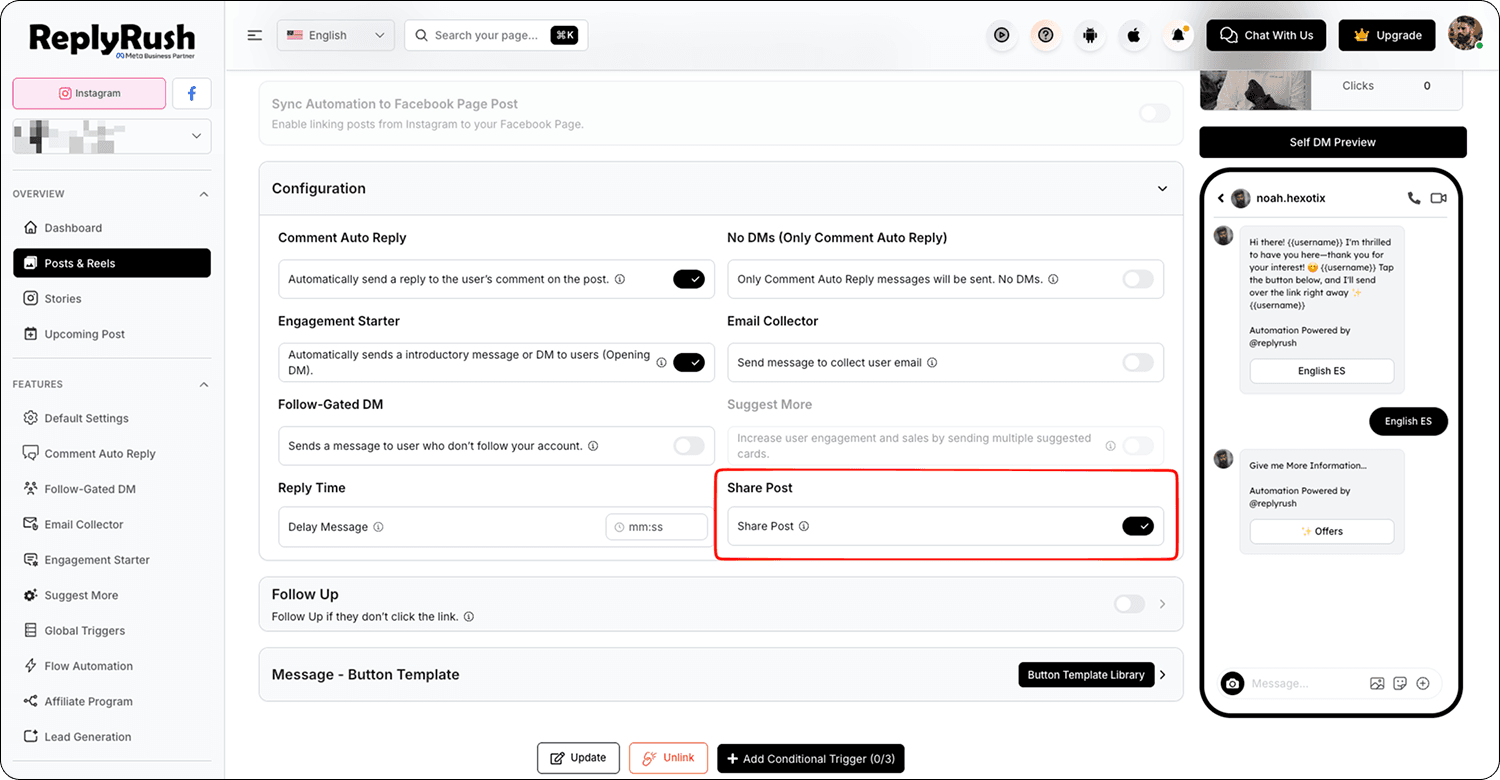
- Select Share to DM from the trigger options.
- This will send the DM to any user who shares your post/reel directly to your Instagram inbox instead of commenting.
- Use a caption prompt like:
“Share this post to my inbox to get the free guide!”
Step 3: Configure Additional Settings
Send Once Per User / Per Post – Prevents the same user from receiving the DM multiple times for the same content.
- Exclude Keywords – Add words that should block the DM from being sent if they appear in a comment (e.g., “spam,” “bot,” etc.)
Step 4: Choose Your Message Type
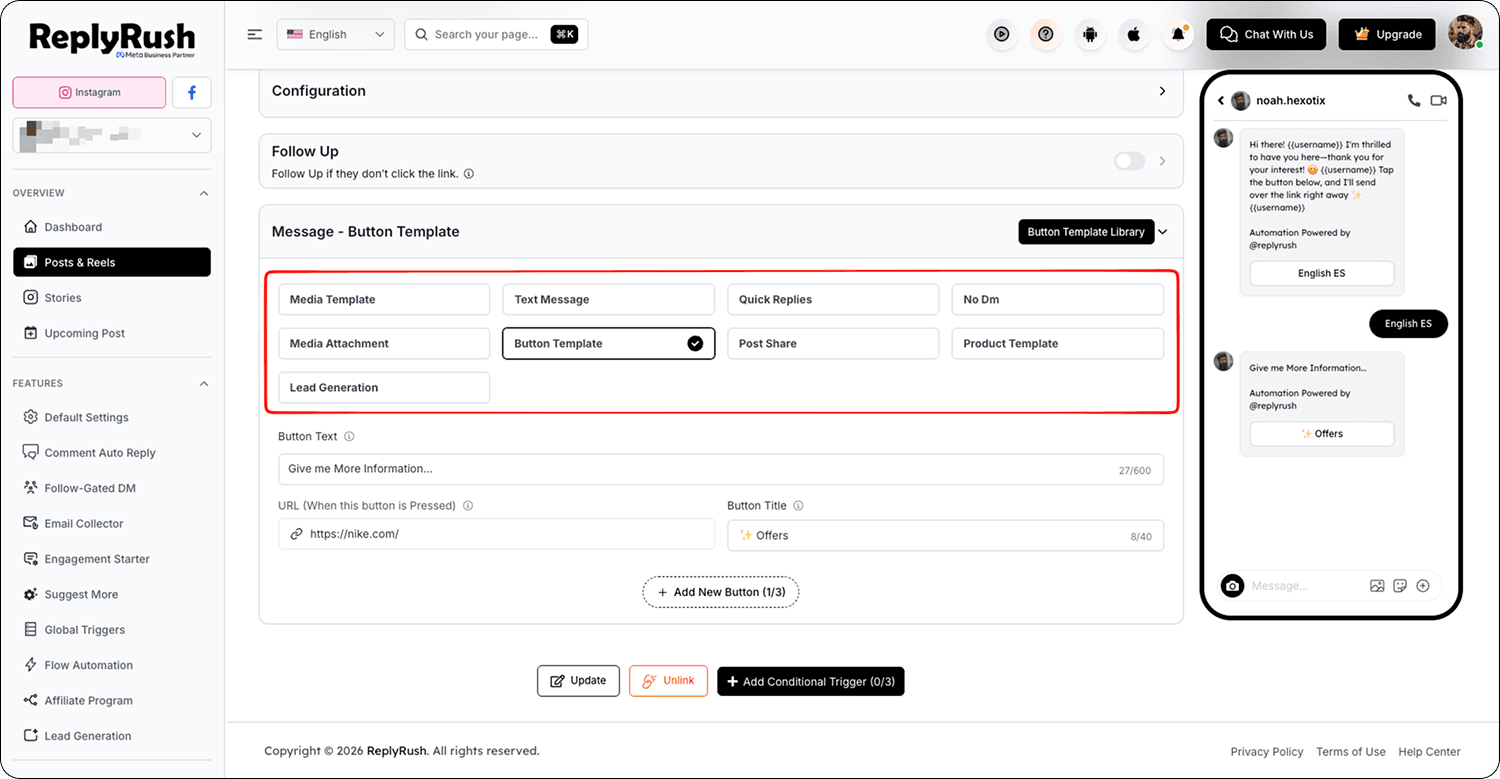
- Pick Media Template, Simple Message Template, or Quick Replies based on your campaign needs.
- Create or select the template you want to send when the trigger activates.
Step 5: Update / Save and Test
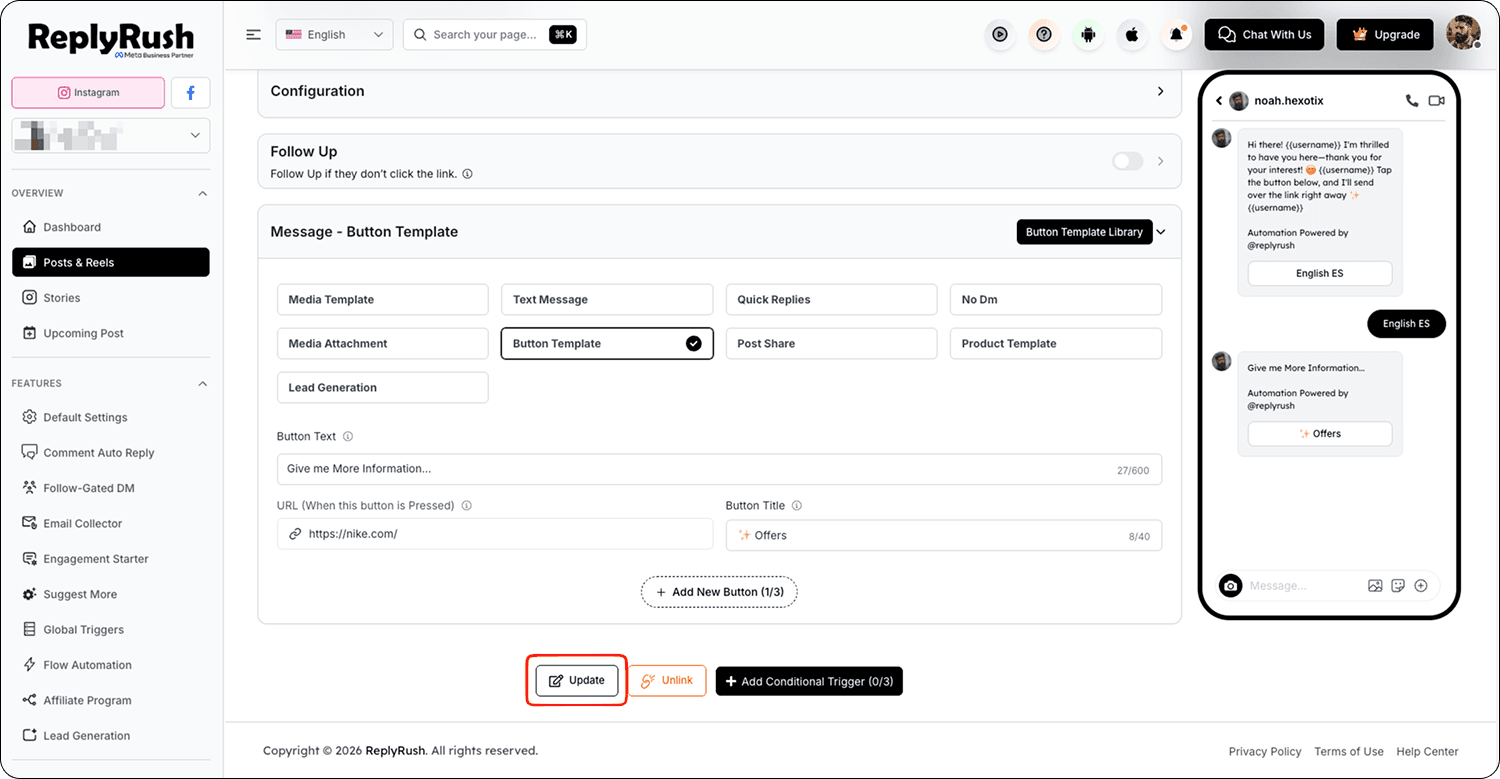
- Click update / save to activate your automation.
- Test it by commenting from another account or sharing the post (depending on the trigger).
Pro Tips
- AI Trigger is perfect if you run multiple campaigns and frequently update captions.
- Use Specific Keywords for contests or lead-gen forms to keep responses targeted.
- Combine Share to DM with a clear call-to-action in your captions to boost reach.